Other software
The Best Background Remover Software for PCs
Which background remover to install on a Windows PC, which to run in the browser instead, and how to pick based on volume, image difficulty and privacy.
“Software for PC” usually means one of two very different things: something you install, or something you open in a browser. Both are valid, and picking the wrong category is why people end up frustrated.
This guide covers both, and gives you a clear rule for which to use when.
Try the browser option first — it takes ten seconds →
Do you actually need to install anything?
Start here, because it saves most people a download.
Install desktop software if:
- You work offline, or on an unreliable connection.
- Your files are enormous — 50 megapixel raw files, layered PSDs, print TIFFs.
- You need heavy manual retouching, not just a cutout.
- You are processing hundreds of images and need scripted batch runs.
- Your organisation forbids uploading images to third-party services.
Use a browser tool if:
- You have a handful of images.
- You want a result in seconds, not minutes.
- You do not want to manage licences and updates.
- You move between machines.
For most people, most of the time, the browser is the right answer. The exception used to be privacy — but our free preview runs entirely on your own machine inside the browser, so the image is never uploaded for that step. The paid full-resolution download is processed on our server, and we say so rather than fudging it.
The comparison
| Option | Cost | Speed | Manual control | Offline | Best for |
|---|---|---|---|---|---|
| Browser tool | Free tier | Seconds | Brush | Preview only | Most people, most images |
| Adobe Photoshop | Subscription | Minutes | Complete | Yes | Difficult edges, retouching |
| GIMP | Free | Minutes | Complete | Yes | Free desktop control |
| Paint.NET | Free / small fee | Fast | Good | Yes | A middle ground on Windows |
| Windows Paint | Free, built in | Instant | Almost none | Yes | Something rough, right now |
| Windows Photos | Free, built in | Fast | Limited | Yes | Quick everyday cutouts |
| Affinity Photo | One-off purchase | Minutes | Complete | Yes | Photoshop-level, no subscription |
The installed options
Windows Paint
Recent Windows builds put a Remove Background button directly in Paint’s toolbar. Open the image, click it, done.
Good: already installed, instant, completely offline, zero learning.
Bad: crude edges, no meaningful refinement, and limited control over output. Fine for an internal slide. Not fine for a client.
Use it when: you need something in the next thirty seconds and quality is not the point.
Windows Photos
The Photos app has gained background editing — remove, blur, or replace with a colour. Slightly better than Paint and equally free.
Use it when: you want a quick personal cutout without opening anything new.
GIMP
The serious free option. Open source, no cost ever, available for Windows, Mac and Linux.
The relevant tools:
- Foreground Select — you paint a rough outline, then paint over the subject, and GIMP works out the boundary. Slow but capable.
- Fuzzy Select (magic wand) — excellent for flat, uniform backgrounds.
- Paths tool — draw a precise outline by hand. Tedious and unbeatable for hard edges on solid objects.
- Layer masks — non-destructive editing, same principle as Photoshop.
Good: free, powerful, offline, scriptable for batch work.
Bad: no reliable one-click subject detection built in, and the interface takes real effort to learn. Budget fifteen minutes per hard image, not five seconds.
Use it when: you want professional control and refuse to pay a subscription.
Adobe Photoshop
The ceiling for image quality, and still the right tool for the images that defeat everything else.
- Remove Background in the Properties panel is a genuine one-click option.
- Select Subject plus Select and Mask — with the Refine Edge Brush — is the best hair extraction available.
- Blend If and channel extraction handle cases nothing automatic can touch.
Good: unmatched control, full non-destructive workflow, integrates with everything.
Bad: ongoing subscription, heavy install, and genuinely slow for simple jobs.
Use it when: the image is hard, or the result has to be perfect.
Affinity Photo
A one-off purchase alternative with comparable capability to Photoshop for this kind of work. Selection refinement is strong, and there is no subscription.
Use it when: you want Photoshop-class manual control without a recurring bill.
Paint.NET
A long-standing Windows middle ground — much more capable than Paint, far lighter than Photoshop, with a magic wand, layers, and plugin support.
Use it when: Paint is not enough and Photoshop is too much.
The browser option, in detail
Browser tools have quietly overtaken installed software for ordinary background removal, for a simple reason: the automatic detection is now good enough that the manual tools are rarely needed.
How it works in practice:
- Open the background remover.
- Drag your image onto the page.
- The subject is separated automatically.
- Refine with a brush if needed.
- Download as PNG with transparency, or use the white background maker to go straight to white.
The privacy point that matters on a PC: most web tools upload your image to a server. Ours does not for the free preview — the processing runs inside your browser using your own machine’s hardware. That means the image never leaves your PC for that step, which is the same guarantee installed software gives you, without the install.
Run one through and compare the edge →
What about hundreds of images?
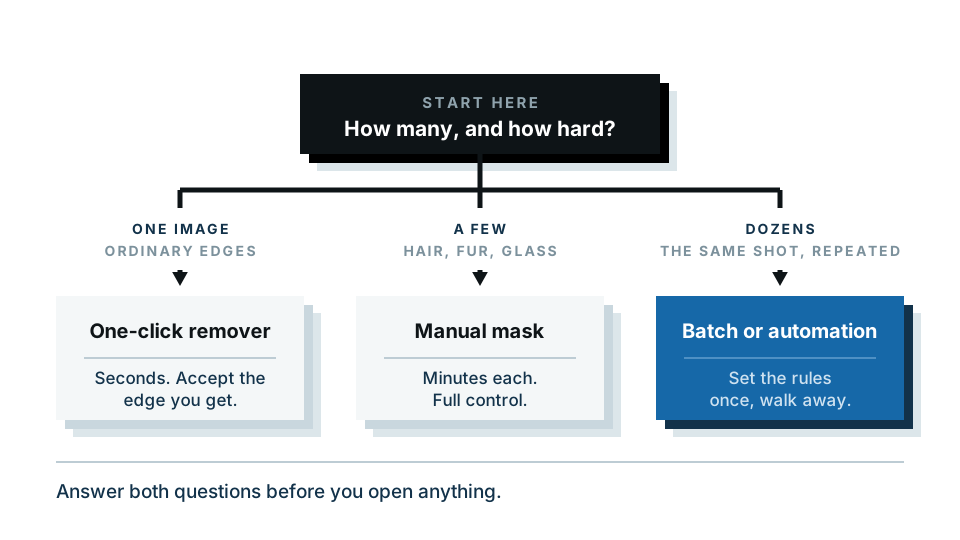
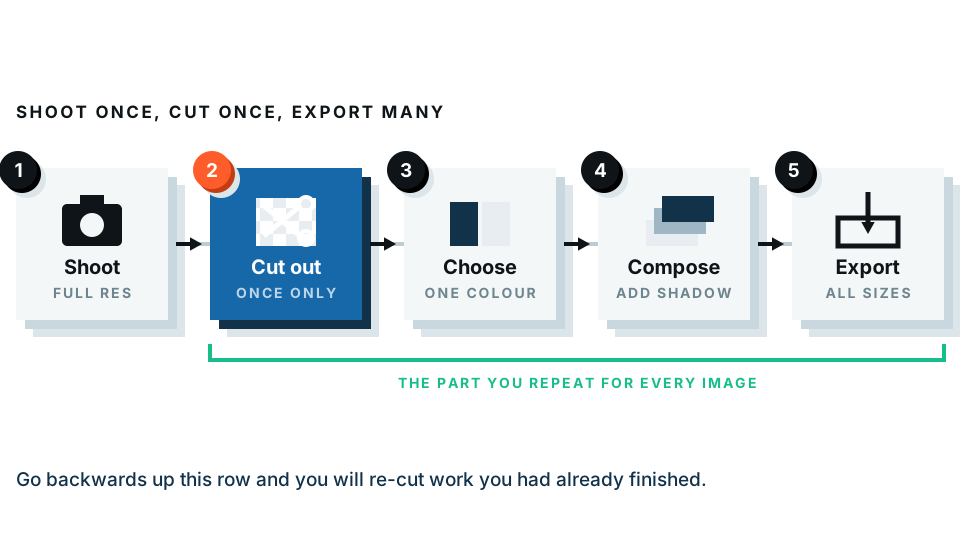
None of the interactive options above are right for volume. For batch work:
- GIMP with Script-Fu — free, scriptable, runs unattended.
- ImageMagick — command line, excellent for the mechanical parts (resizing, canvas, format conversion) though not for the cutout itself.
- A background removal API — best quality per image at volume, priced per image.
- A dedicated batch tool — most e-commerce-focused services offer folder processing on paid plans.
The general shape of a volume workflow: rename files by SKU first, run the cutout in one unattended pass, then apply the same crop and canvas to everything with a script. Doing 400 images by hand through any interface is the actual mistake, not the choice of tool.
Recommendations by situation
“I need one image done now.” Browser tool. Ten seconds.
“I have thirty product photos.” Browser tool, one at a time, or a batch service.
“This photo has fine hair against a busy background.” Photoshop or Affinity. Automatic tools will get you close and then stop.
“I cannot upload anything, company policy.” GIMP, or our in-browser preview which does not upload.
“I have no budget at all.” GIMP for control, Windows Paint for speed, browser free tier for convenience.
“I have four hundred images every week.” An API, wired into your pipeline. Stop clicking.
The honest summary
Install software when you need offline work, huge files, deep manual control, or scripted batch runs. Use a browser for everything else — which is most things.
And whichever you choose, test it on your own hardest image before you commit. Sample galleries are chosen because they work.
Frequently asked
Does Windows have a built-in background remover?
Yes. Recent versions of Windows include a Remove Background action in Paint, and Photos includes background editing tools. Quality is basic but it is already installed and works offline.
What is the best free background remover for PC?
GIMP if you want full manual control and do not mind a learning curve. A browser tool if you want a one-click result. Windows Paint if you just need something rough right now.
Do I need to install software at all?
Usually not. Browser tools handle most images, and ours runs the free preview on your own machine without uploading. Install desktop software when you need offline work, huge files, or heavy manual retouching.
What is the fastest option for hundreds of images?
A batch-capable desktop tool or an API. Doing hundreds of images one at a time through any interface is the wrong approach regardless of which tool you pick.
Which option keeps my images off the internet?
Installed desktop software, or our in-browser preview, which processes the image locally and never uploads it. Most other web tools send your image to a server.