Phones & tablets
How to Create WhatsApp Stickers Online
Turn your own photos into WhatsApp stickers in a browser, with the exact size and format rules, and how to add them on both iPhone and Android.
Stickers of your own dog, your friends, or an in-joke from last summer are far funnier than anything in the official packs. And making them is genuinely a five-minute job.
The whole thing comes down to one step — cutting the subject out of the photo — plus knowing the exact size WhatsApp expects. Both are below.
The rules WhatsApp enforces
Get these wrong and the sticker either gets rejected or looks broken in a chat.
| Requirement | Value |
|---|---|
| Dimensions | Exactly 512 × 512 pixels |
| Format | PNG (WebP for animated) |
| Background | Transparent — required |
| File size | Under 100 KB per static sticker |
| Margin | About 16 px of clear space on every side |
| Pack size | 3 to 30 stickers per pack |
| Tray icon | 96 × 96 px, under 50 KB |
The transparent background is the non-negotiable one. WhatsApp draws stickers directly onto the chat wallpaper, so a white rectangle behind your dog looks exactly as bad as it sounds.
Step one: pick the right photo
Stickers are tiny and they read as silhouettes. That changes what makes a good source photo.
Look for:
- A clear, distinctive outline. An arm raised, a head tilted, a mouth open. Shape is what carries at small sizes.
- A strong expression. Stickers are used to convey a reaction. Neutral faces make useless stickers.
- Good separation between the subject and what is behind it.
- Decent resolution — at least 512 px on the short side, ideally 1000 or more.
Avoid:
- Full-body shots taken from far away. The subject becomes a dot.
- Anything blurry — cutouts of blurry things look like smudges.
- Photos where the subject blends into the background.
A useful rule: if you cannot tell what the photo shows when you squint at it, it will not work as a sticker.
Step two: remove the background
This is the part that turns a photo into a sticker.
- Open the background remover.
- Drop your photo in.
- The subject is separated from the background automatically.
- Refine with the brush if needed — check around hair, ears and any raised arms.
- Download as PNG. This preserves the transparency.
Our free preview runs entirely inside your browser. For photos of friends, family or children — which is most sticker material — the image is never uploaded during that step.
Checking the cutout properly
Preview the PNG on a dark background before you use it. Chat wallpapers are often dark, and a pale halo that is invisible on white will be glaringly obvious in a chat.
Look for:
- A pale rim around the subject.
- Hair that has been chewed thin.
- Gaps under an arm or between fingers that were left filled.
Step three: resize to 512 × 512
Your cutout is probably not square, and it needs to be.
- Create a 512 × 512 pixel canvas with a transparent background in any free image editor.
- Paste your cutout onto it.
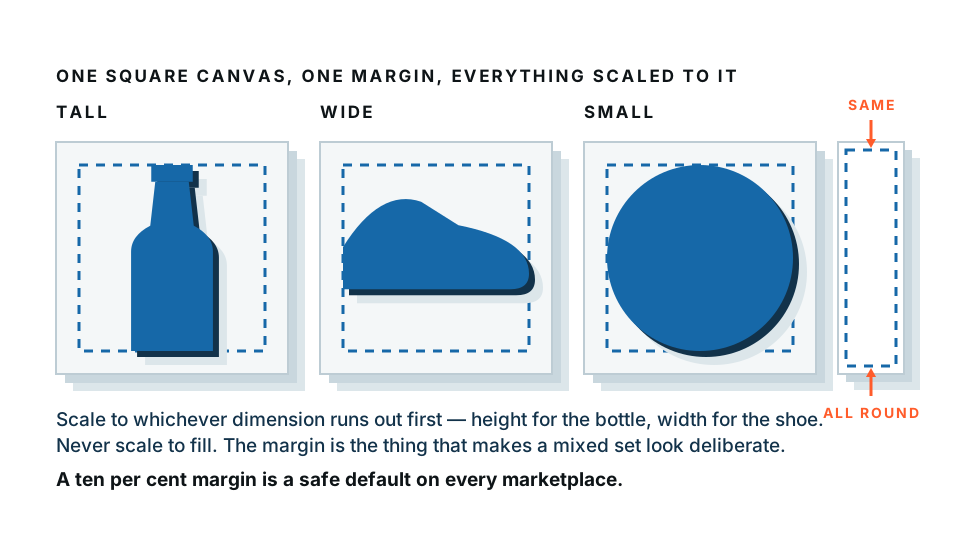
- Scale it so the longest dimension of the subject is about 480 pixels, leaving the 16 px margin.
- Centre it, or place it slightly low if the subject is a face — it looks better in a chat.
- Export as PNG with transparency.
- Check the file size. If it is over 100 KB, run it through any PNG compressor.
The margin matters more than you expect
WhatsApp does not crop, but some interfaces put stickers close to the edge of their container, and a subject touching the very edge of the canvas looks cramped. Sixteen pixels is the recommendation; twenty is safer.
Step four: adding stickers to WhatsApp
On iPhone
WhatsApp has a built-in sticker maker:
- Open any chat.
- Tap the + button, then Stickers.
- Tap Create (the plus icon in the sticker panel).
- Choose a photo from your library.
- WhatsApp offers to cut out the subject automatically — or you can use the PNG you already made, which usually looks better.
- Add text or effects if you want.
- Tap Send or Save.
Stickers made this way are saved to your Recents and can be reused.
On Android
The same built-in flow exists in recent versions — the + button, then Stickers, then Create.
For a full custom pack with a name and a tray icon, you need a third-party sticker pack app from the Play Store. These apps register your pack with WhatsApp so it appears alongside the official ones.
Before installing one: check what photo permissions it asks for and read its privacy policy. Sticker apps are a category where free apps often monetise in ways you would not choose.
Building a proper pack
If you want a named pack rather than individual stickers:
- Make between 3 and 30 stickers, all 512 × 512 PNGs.
- Make a 96 × 96 tray icon — usually a simplified version of your best sticker.
- Use a sticker pack app to assemble them with a pack name and author name.
- Add the pack to WhatsApp from within that app.
Ideas that actually get used
The stickers people send repeatedly have a specific quality: they say something a word would say more slowly.
- Reaction faces. Your friend looking unimpressed. The most-used category by a distance.
- Pets. Endlessly reusable and universally well received.
- A person pointing. Works as “you”, “that”, and “exactly”.
- Thumbs up, in your own hand. Better than the emoji.
- An in-joke object. The specific mug, the specific hat, the specific terrible sofa.
- Text stickers. A phrase your group says constantly, in bold type on a transparent background.
The best sticker packs are made from photos that already exist in a group chat. Scroll back six months and you will find them.
Common problems
“The sticker has a white square around it.” It was saved as JPG. JPG cannot store transparency. Re-save as PNG.
“It looks blurry.” The source photo was too small, or you scaled a small cutout up to 512. Start bigger.
“WhatsApp says the file is too large.” Over 100 KB. Compress the PNG, or simplify the image — large areas of fine detail make bigger files.
“The edges look rough.” Zoom in on your cutout before resizing. Fix the edge at full size, not at 512.
“Parts of the subject are missing.” Thin things — glasses arms, hair strands, a thin lead — often get cut. Brush them back in.
Make three today
Do not plan a pack. Find three photos in your camera roll with strong expressions, cut them out, resize to 512, and add them. You will know within a day whether the group finds them funny, and that will tell you what the other twenty-seven should be.
Frequently asked
What size do WhatsApp stickers need to be?
512 by 512 pixels, PNG with a transparent background, under 100 KB per sticker. Animated stickers must be WebP. Leave about 16 pixels of clear margin on all sides.
Do WhatsApp stickers need a transparent background?
Yes. A sticker with a white box behind it looks broken in a chat bubble. Remove the background and save as PNG before adding it.
Can I make WhatsApp stickers without an app?
You can make the images without an app — a browser background remover is enough. Adding them to WhatsApp needs either WhatsApp's own sticker maker or a third-party sticker pack app.
Why does my sticker look pixelated?
The source photo was too small. Start with an image at least 512 pixels on the shorter side, and ideally 1000 or more, before you cut anything out.
Is it safe to make stickers from personal photos?
Our free preview processes the image entirely in your browser, so personal photos are never uploaded. Third-party sticker apps vary widely — check before granting photo access.