Comparisons
Top 5 Best Photo Background Editors
An honest comparison of five photo background editors — what each one is genuinely good at, what it costs, and which to pick for your kind of image.
“Background editor” covers two quite different jobs: cutting a subject out, and putting something better behind it. Some tools do one brilliantly and the other badly. This comparison sorts out which is which, so you can pick once and get on with it.
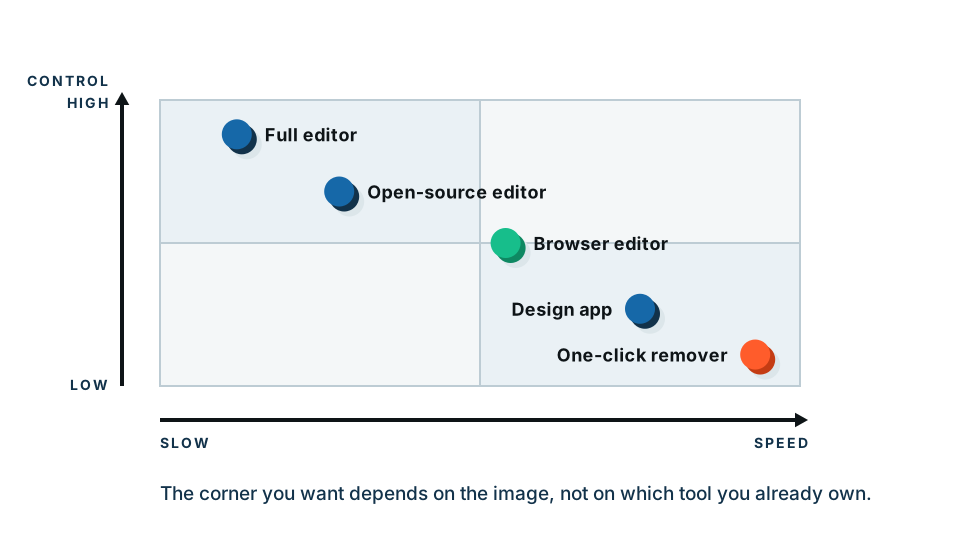
Quick summary: if you want speed, use a browser-based remover. If you want total control, use Photoshop or GIMP. If you want a finished social graphic, use Canva. Nothing here is a bad tool — they are built for different people.
If you already know you just want the subject cut out cleanly, start with the background remover — the preview is free and runs in your browser.
How we judged them
Five things, in the order they matter to most people:
- Edge quality. Especially hair, fur, and semi-transparent things like glass or a wedding veil.
- Speed to a finished file. Including install, sign-up and learning time.
- Cost. Real cost, including what you hit when you want a full-resolution download.
- Batch handling. Whether ten images take ten times as long as one.
- Privacy. Where your image actually goes.
1. Browser-based background removers
Best for: one clean cutout, fast, on any device.
A dedicated remover does one job — separate subject from background — and does it automatically. You drop an image in, wait a few seconds, and get a transparent PNG. There is nothing to install and nothing to learn.
The quality is now good enough that on ordinary photos it beats a hand-drawn selection made in a hurry, because the model follows the actual edge rather than your mouse. On genuinely hard images — fine flyaway hair against a similar colour, chain-link fences, motion blur — you will still find edges to fix.
Where ours differs: the free preview runs entirely inside your browser. Your photo is not uploaded to us or anyone else while you are trying it out. The paid full-resolution download is processed on our server, and we would rather say that plainly than let you assume otherwise. No other major tool in this category can offer the in-browser preview.
Strengths: fastest route to a usable file. Works on phones. No account needed to see the result.
Limits: less useful when you want to composite, retouch and colour-grade in the same place.
2. Adobe Photoshop
Best for: the highest possible quality, and complex composites.
Photoshop remains the ceiling. Select Subject and Remove Background do a decent automatic pass in one click, and then — this is the real advantage — Select and Mask gives you refinement tools that nothing else matches. The Refine Edge Brush genuinely recovers individual strands of hair from a busy background.
You also get everything after the cutout: shadows that match the new scene, colour matching, perspective, retouching.
Strengths: best edge control available. Non-destructive layer masks. Actions and scripts for batch work if you invest the time.
Limits: subscription cost. A large download. A real learning curve — Select and Mask has about a dozen controls, and knowing which two matter takes practice.
Cost: paid subscription, no permanently free tier.
3. GIMP
Best for: unlimited manual editing at zero cost.
GIMP is free and open source, and it does layer masks, channels and paths properly. There is no automatic subject detection, so every cutout is manual — fuzzy select for flat backgrounds, paths for hard edges, a painted layer mask for hair.
If you are willing to learn it, you can produce professional cutouts without paying anything, forever. If you want one image done in the next five minutes, this is not the tool.
Strengths: genuinely free with no limits. Runs on Windows, macOS and Linux. Strong masking.
Limits: manual only. The interface takes getting used to. Export is a separate command from Save, which catches everyone once.
4. Photopea
Best for: Photoshop-style editing in a browser tab.
Photopea is a free web editor that deliberately mirrors Photoshop’s layout and opens PSD files. It has layers, masks, a magic wand, and an automatic background remover of its own. Nothing to install.
It is the best middle ground on this list: more control than a one-click remover, no subscription, and no download. It is supported by on-screen ads, which some people find distracting during detailed work.
Strengths: free, powerful, opens and saves PSD. Familiar if you have used Photoshop.
Limits: ads. Performance depends on your machine and browser. Large files can be slow.
5. Canva
Best for: getting from a cutout to a finished, sized, branded graphic.
Canva is not really a cutout tool — it is a layout tool with a background remover attached. That framing matters. If your end goal is an Instagram post, a product listing card, a poster or a slide, Canva takes you all the way there with templates, type and brand colours.
The background remover is a Pro feature, and it is good rather than exceptional. But you rarely need exceptional when the cutout ends up 400 pixels wide on a card.
Strengths: enormous template library. Team sharing. Everything in one place.
Limits: background removal is behind the paid tier. Less edge control than any dedicated tool. Your images live in Canva’s cloud.
The comparison table
| Tool | Automatic cutout | Edge control | Batch | Cost | Best single use |
|---|---|---|---|---|---|
| Browser remover | Yes, seconds | Basic touch-up | Good | Free preview, paid full-res | One fast, clean PNG |
| Photoshop | Yes, then refine | Excellent | Via actions | Subscription | Difficult hair, composites |
| GIMP | No | Excellent, manual | No | Free | Careful work on a budget |
| Photopea | Yes | Good | No | Free with ads | Photoshop skills, no licence |
| Canva | Yes, Pro only | Basic | Limited | Free tier, Pro for removal | Finished social graphics |
Which one should you pick?
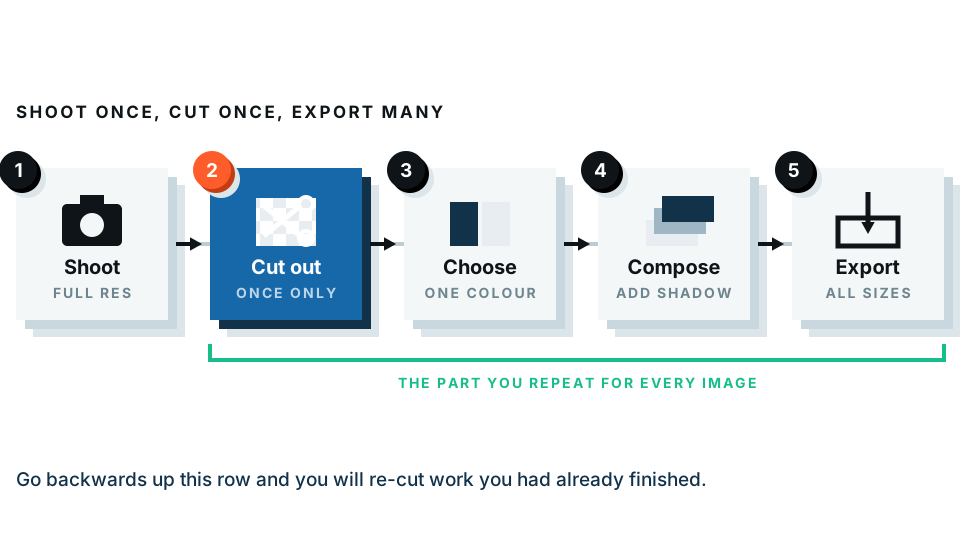
You need one cutout right now. A browser remover. Nothing else is close on time-to-file.
You are listing products in a shop. A remover with consistent output, then a white background applied to every image at the same size. Consistency across the grid is what makes a shop look professional — not perfection on any one photo.
You shoot portraits with hair and you are picky. Photoshop. It is the only tool where the refinement stage is properly solved.
You have no budget and plenty of patience. GIMP or Photopea. Both are capable of professional results.
Your cutout is a step, not the goal. Canva, if the destination is a designed graphic.
Need the cutout before you decide anything else? Try it here — you will see the transparent PNG in a few seconds, and it happens on your own device.
The privacy question nobody asks first
Every tool in this list except GIMP, Photopea and our free preview sends your image to a server. For a photo of a coffee cup, who cares. For a client’s unreleased product, a passport photo, a picture of your kids, or anything under an NDA, it is worth a thought.
Three honest positions:
- Fully local: GIMP and Photopea process on your machine. So does our free preview.
- Uploaded: Photoshop’s cloud features, Canva, and most online removers. Their privacy policies are worth two minutes of reading.
- Mixed: ours. Preview local, paid full-resolution download processed server-side.
None of these is wrong. But it should be a choice you make, not one made for you.
Getting started
Whichever tool you land on, the same three habits improve every result:
- Shoot with separation in mind. Get your subject away from the wall. A metre of distance makes a bigger difference than any software setting.
- Check the edges at 100%. Every tool looks perfect zoomed out.
- Save as PNG when you need transparency. JPG cannot store it, and will quietly turn your cutout’s empty space white.
Start with a free cutout and see how far it gets you. If the edges need more than a touch-up, you now know exactly which tool to open next.
Frequently asked
What is the best free photo background editor?
For a single quick cutout, a browser-based remover is fastest and free to preview. For unlimited manual control at no cost, GIMP and Photopea are both genuinely free and capable.
Do I need Photoshop to edit backgrounds properly?
No. Photoshop gives you the most control, but for removing or replacing a background most people get an equal result faster with a dedicated tool.
Which background editor is best for online shop photos?
One that handles batches and produces consistent white or transparent backgrounds. Consistency across a product grid matters more than perfection on any single image.
Can I edit photo backgrounds on my phone?
Yes. Browser-based tools work in a mobile browser with no app to install, and both iOS and Android have built-in subject lift features that produce a usable cutout.
Is it safe to upload photos to a background editor?
It depends on the tool. Most upload your image to a server. Our free preview processes everything inside your browser, so the image never leaves your device.