Comparisons
10 Best Background Remover Tools Compared
An honest comparison of ten background removal tools, what each is genuinely best at, where each falls down, and how to pick the right one for your work.
Most comparison articles are ranked adverts. This one tries not to be. We make a background remover, so read the section about our own tool with the scepticism it deserves — and note that we have listed several tools that are better than ours for specific jobs.
Prices and features change constantly. Treat any specific number as a starting point to verify, not a fact.
Compare against ours in ten seconds — free, nothing uploaded →
How should you choose?
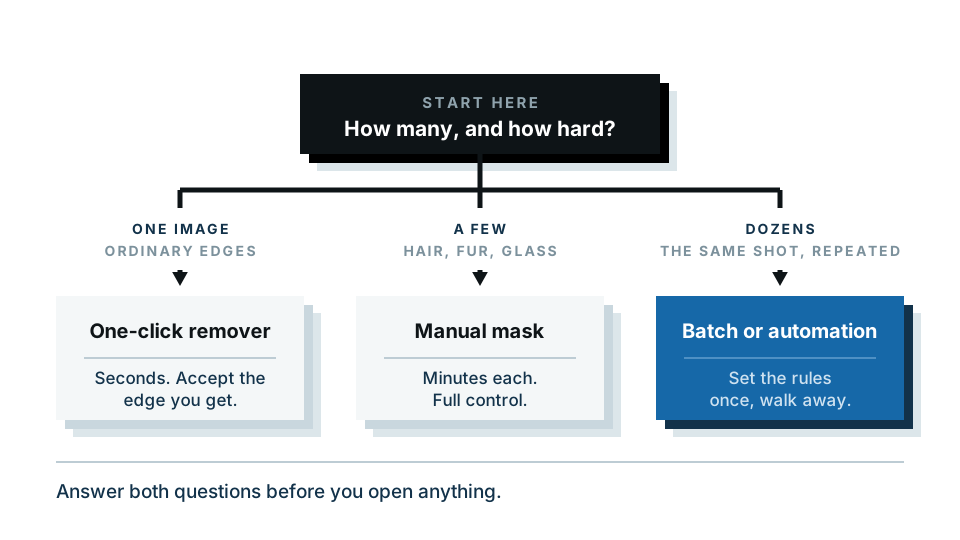
Four questions decide it. Answer these and the shortlist writes itself.
- How many images? One a week, or four hundred a day?
- What resolution do you need out? Web thumbnail, or print?
- Do you need to fix the result by hand?
- Does the image need to stay on your machine?
The comparison table
| Tool | Best for | Free tier | Manual refinement | Batch |
|---|---|---|---|---|
| BackgroundBeGone | Private, fast one-off cutouts | Yes, in-browser preview | Brush | Limited |
| remove.bg | Reliable automatic edges, API | Yes, low-res download | Basic | Yes |
| Adobe Photoshop | Hard images, total control | Trial only | Full masking | Via actions |
| Canva | Cutout inside a design | Pro feature | Basic | No |
| GIMP | Free desktop control | Fully free | Full masking | Via scripts |
| Photoroom | Mobile product photos | Yes, watermarked exports vary | Brush | Yes, paid |
| Pixelcut | Quick mobile e-commerce shots | Yes | Brush | Yes, paid |
| Apple Photos / Preview | iPhone and Mac, offline | Built in | None | No |
| Microsoft Paint | Windows, already installed | Built in | Crude | No |
| Adobe Express | Free Adobe-quality cutouts | Yes, account needed | Limited | No |
The tools, one by one
1. BackgroundBeGone
Best for: one-off cutouts where you would rather not upload the image.
The free preview runs entirely in your browser using on-device processing. Your image is never sent anywhere for that step, which matters for client work, unreleased products, photos of children, and documents. As far as we know no other major tool can say this.
Where it falls down: the paid full-resolution download is processed on our server, so the privacy advantage applies to the free preview, not the whole pipeline. Batch handling is lighter than the dedicated e-commerce tools. If you need to process a thousand images an hour through an API, look further down this list.
Try the in-browser version on your own image →
2. remove.bg
Best for: consistently good automatic edges and a mature API.
It is the tool most people mean when they say “background remover”, and the automatic quality is genuinely strong, particularly on people and hair. The API is well documented and widely integrated, which makes it the default for developers wiring background removal into a pipeline.
Where it falls down: the free download is low resolution, so anyone needing print or zoom-quality output is on a paid plan quickly. Manual refinement is limited compared to a real editor.
Is BackgroundBeGone a remove.bg alternative?
Yes, for one reason in particular: images you would rather not upload.
remove.bg is still the more consistent choice for automatic edge quality, especially on hair and complicated subjects, and its API is more mature. BackgroundBeGone’s advantage is narrower and more specific. The free preview never leaves your browser, which remove.bg does not offer at all.
So the honest answer depends on why you are looking. If it is privacy, start here. If it is edge quality on the hardest photographs, remove.bg is still the one to beat.
3. Adobe Photoshop
Best for: the images that defeat everything else.
Select Subject does a one-click cut that is often excellent, and then — crucially — you have Select and Mask, Refine Edge, channel-based extraction, and layer masks to fix whatever it got wrong. For fine hair against a busy background, a professional with Photoshop still beats every automatic tool.
Where it falls down: cost, learning curve, and speed. If you have thirty simple product shots, doing them in Photoshop is a waste of an afternoon.
4. Canva
Best for: when the cutout is one step inside a design you are already making.
Background Remover is a Canva Pro feature, and it works on the image already placed in your layout. No exporting, no re-importing. For social posts, presentations and flyers, that convenience genuinely outweighs a slightly better edge elsewhere.
Where it falls down: it is a paid feature, edge quality on hard images is middling, and you cannot easily get a clean transparent PNG out for use in other software on the free plan.
5. GIMP
Best for: free desktop editing with full manual control.
GIMP is open source and costs nothing, ever. The Foreground Select tool, Paths tool and layer masks let you do genuinely professional extraction work with no subscription.
Where it falls down: it is slow, manual, and the interface is not friendly. There is no reliable one-click subject detection built in. Budget fifteen minutes per difficult image, not five seconds.
6. Photoroom
Best for: small sellers shooting products on a phone.
Built around the e-commerce use case — cut out the product, place it on a background or a template, export at listing sizes. Batch modes make catalogue work practical from a phone.
Where it falls down: free exports and resolution limits vary by plan and change often. It is opinionated toward product photography, which is a strength for sellers and a limitation for anyone else.
7. Pixelcut
Best for: fast mobile product shots and marketplace listings.
Similar territory to Photoroom — cutout, background swap, templates, batch. Fast on a phone and pleasant to use.
Where it falls down: the most useful features sit behind the paid tier, and desktop use is secondary to mobile.
8. Apple Photos and Preview
Best for: iPhone and Mac users who want an offline cutout with zero setup.
On recent iPhones you can long-press a subject in Photos and lift it straight out. On a Mac, Preview has a Remove Background action. It is free, instant, works offline, and the image never leaves the device.
Where it falls down: no manual refinement at all, no batch, and quality varies wildly by subject. It is superb on a pet and unreliable on a bicycle. But for a quick sticker it is unbeatable for effort.
9. Microsoft Paint
Best for: Windows users who need something now and cannot install anything.
Recent Windows builds added a Remove Background button to Paint. It is genuinely useful for a rough cutout, and it is already on the machine.
Where it falls down: crude edges, no refinement worth the name, and output options are limited. Fine for a quick internal slide; not fine for a client.
10. Adobe Express
Best for: Adobe-quality cutouts without paying for Photoshop.
Express includes a free background removal that uses Adobe’s underlying model, and the edge quality is noticeably better than most free tools. You need an Adobe account.
Where it falls down: it is a design app first, so getting a plain transparent PNG out involves more clicks than it should, and heavier use pushes you toward a paid plan.
Which should you pick?
One image, right now, on any device: a browser tool. Start with ours because nothing gets uploaded, then try others if the edge is not good enough.
A folder of product photos: Photoroom, Pixelcut, or a batch-capable service. Consistency matters more than perfection here.
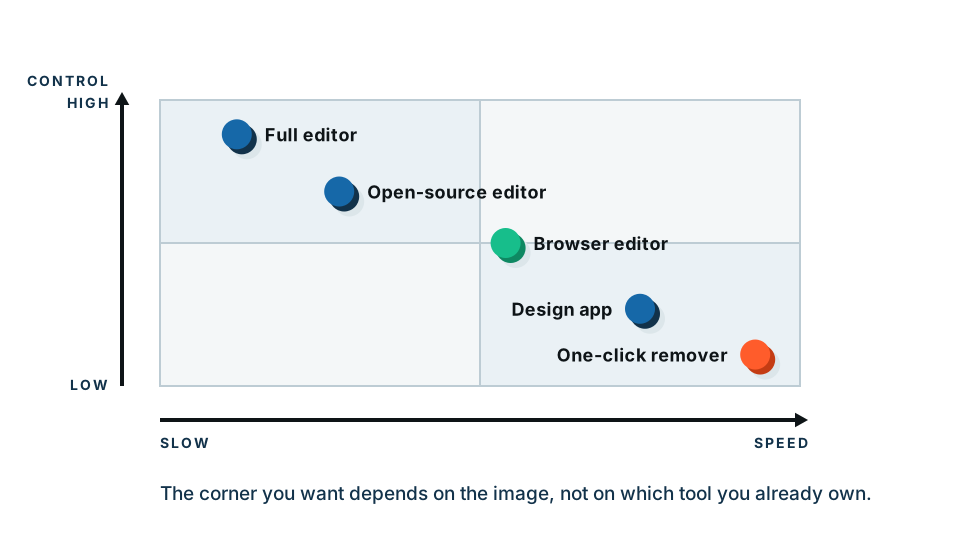
A genuinely difficult image — fine hair, netting, glass: Photoshop, or GIMP if you refuse to pay. Automatic tools will get you 90% of the way and then stop.
Wiring it into software: an API. remove.bg’s is the most widely integrated.
Something confidential: an on-device option. Apple’s built-in tools, or our in-browser preview.
The test that beats every article
Take the hardest image you actually own. Not a sample. Run it through three tools. Zoom to 100% and look at the edge.
That fifteen-minute test is worth more than any ranking, including this one.
Start the test here — free preview, image stays in your browser →
Frequently asked
What is the best free background remover?
For one-off images at web resolution, several free tools do the job well. The distinction that matters is what you get for free: some cap the download resolution, some watermark, and some upload your image. Check all three before you commit.
Is Photoshop still better than automatic tools?
For difficult images, yes. Photoshop's Select Subject plus manual masking gives you control no one-click tool can match. For ordinary images, an automatic tool gets you the same result in five seconds instead of five minutes.
Which background remover keeps my images private?
Almost all of them upload your image to a server for processing. Our free preview is the exception — it runs entirely in your browser. Our paid full-resolution download is processed on our server, and we state that plainly.
Do I need a paid plan?
Only if you need full resolution, high volume, or an API. If you process a few web-sized images a month, free tiers are genuinely sufficient.
Which tool is best for hair and fur?
No tool wins every time. Test your own hardest image rather than trusting anyone's sample gallery, including ours.